Process
Create, version, and deploy the workflows that power your automation all from a single page.
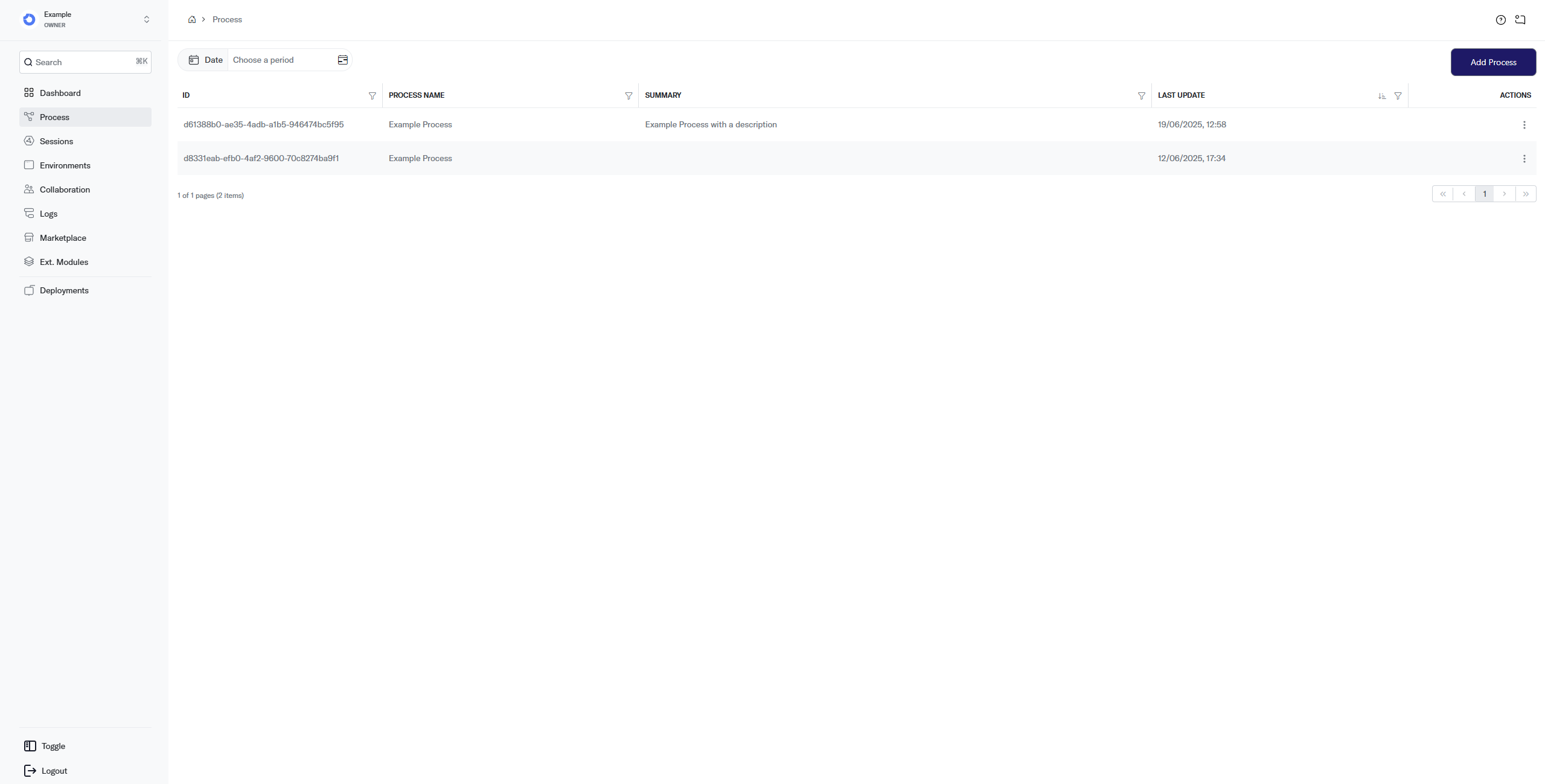
A Process is a workflow project in EW-FLOW. It contains your BPMN diagram, its version history, and links to the Environments where it runs. Every workflow you build starts here.
How it works
Each Process goes through a lifecycle: you create it, design the workflow in the BPMN editor, save versions as you iterate, and deploy a version to an Environment so the engine can execute it. Processes are scoped to the current Workspace and can be linked to one or more Environments.
Fields
- Id unique identifier of the Process. Useful when contacting support.
- Process Name the name you gave the Process during creation. This field is editable.
- Summary a description of your Process. This field is editable.
- Last Update date and time of the last Save or Deploy action.
- Actions menu to perform operations on the Process.
Actions
Edit
Update the Process Name or Summary.
- Click the Actions menu on the Process row.
- Select Edit.
- Modify the fields you need.
- Click the Actions menu again and select Save to confirm, or Cancel to discard.
Delete
Permanently remove a Process from the Workspace. A confirmation dialog appears before deletion.
A deleted Process can only be recovered by contacting customer support.
Process History
View all saved versions of the Process, including who created each version and when.
- Click Actions → Process History.
- Browse the version list.
- Click the dotted menu on any version to open it in the editor.
Opening an older version and saving it creates a new version at the top of the history it does not change what runs. The engine only executes a different version when you Deploy it to an Environment.
Sessions
Opens the Sessions page filtered to this Process.
Environment
Displays the Environments linked to this Process including creation date, last update, and a link to open the latest saved version in each Environment.
Creating a Process
- Navigate to Process from the sidebar.
- Click Add Process in the top-right corner.
- Enter a name and an optional description.
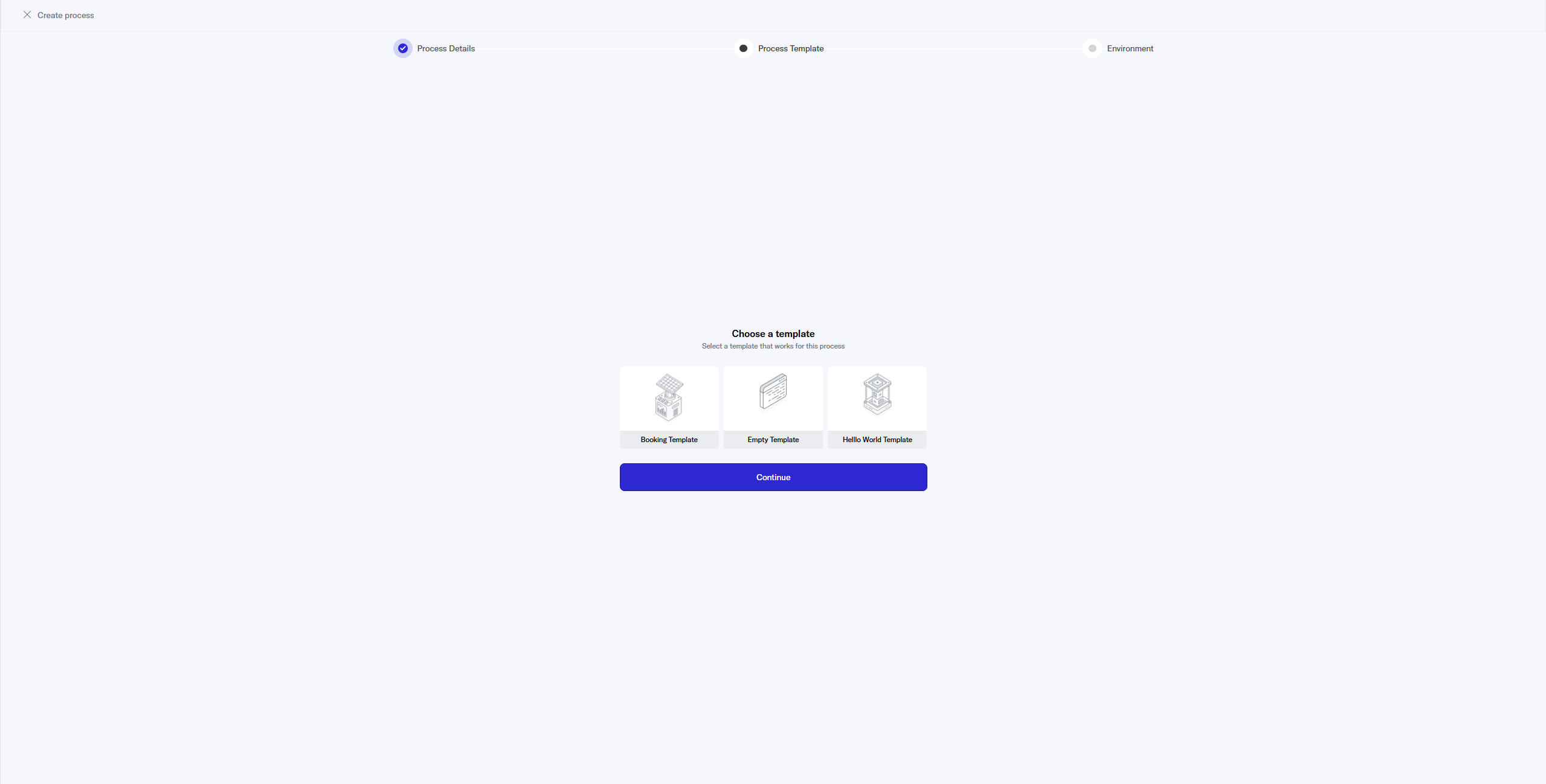
- Choose a template to jumpstart your workflow (or select Empty for a blank slate).
- Create or select an Environment for the Process.
Templates
- Medical Appointment Booking a multi-path workflow that handles booking, modifying, and cancelling appointments. Collects service type, healthcare system, doctor preference, and personal data.
- Empty a complete blank slate with no pre-built nodes.
- Hello World a minimal workflow with one input and one output.
After creation, a dialog asks whether you want to configure the Environment now or go straight to the BPMN editor.
You can add more Environments at any time: open the Process in the editor, open the Environments panel, click the + (Add environment) button, enter a name (e.g. Staging), and click Add. See Environments for configuration details.
Process Editor
The Process Editor is where you design your workflow visually. Drag BPMN elements onto the canvas, connect them with Sequence Flows, and configure each node's data.
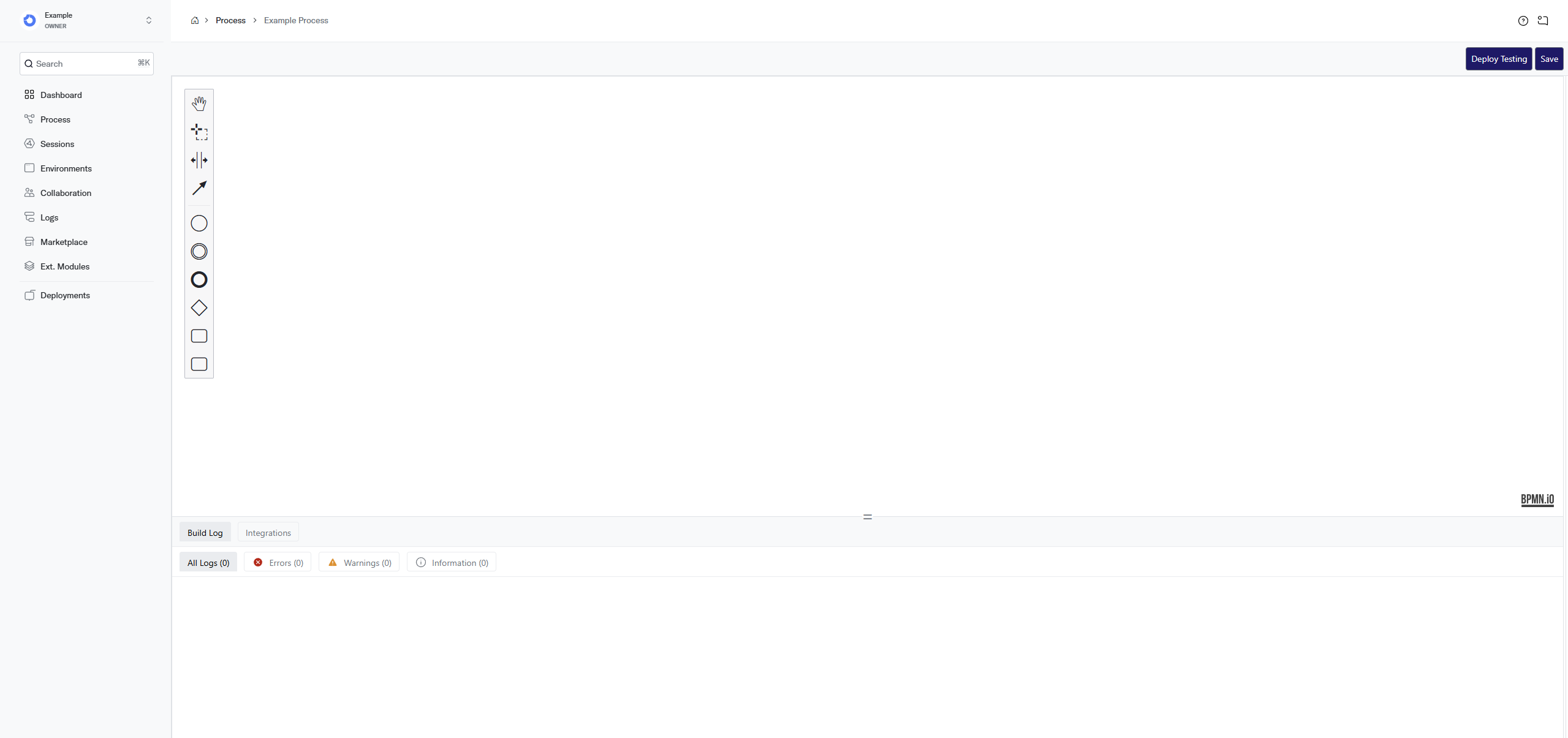
Without any Modules installed, the editor behaves like a standard BPMN editor. Installing Modules from the Marketplace adds Task types that give your workflow real functionality.
To learn more, see BPMN Editor.
Deployments
The Deployments page is available from the sidebar and shows all Deployment records for your Workspace.
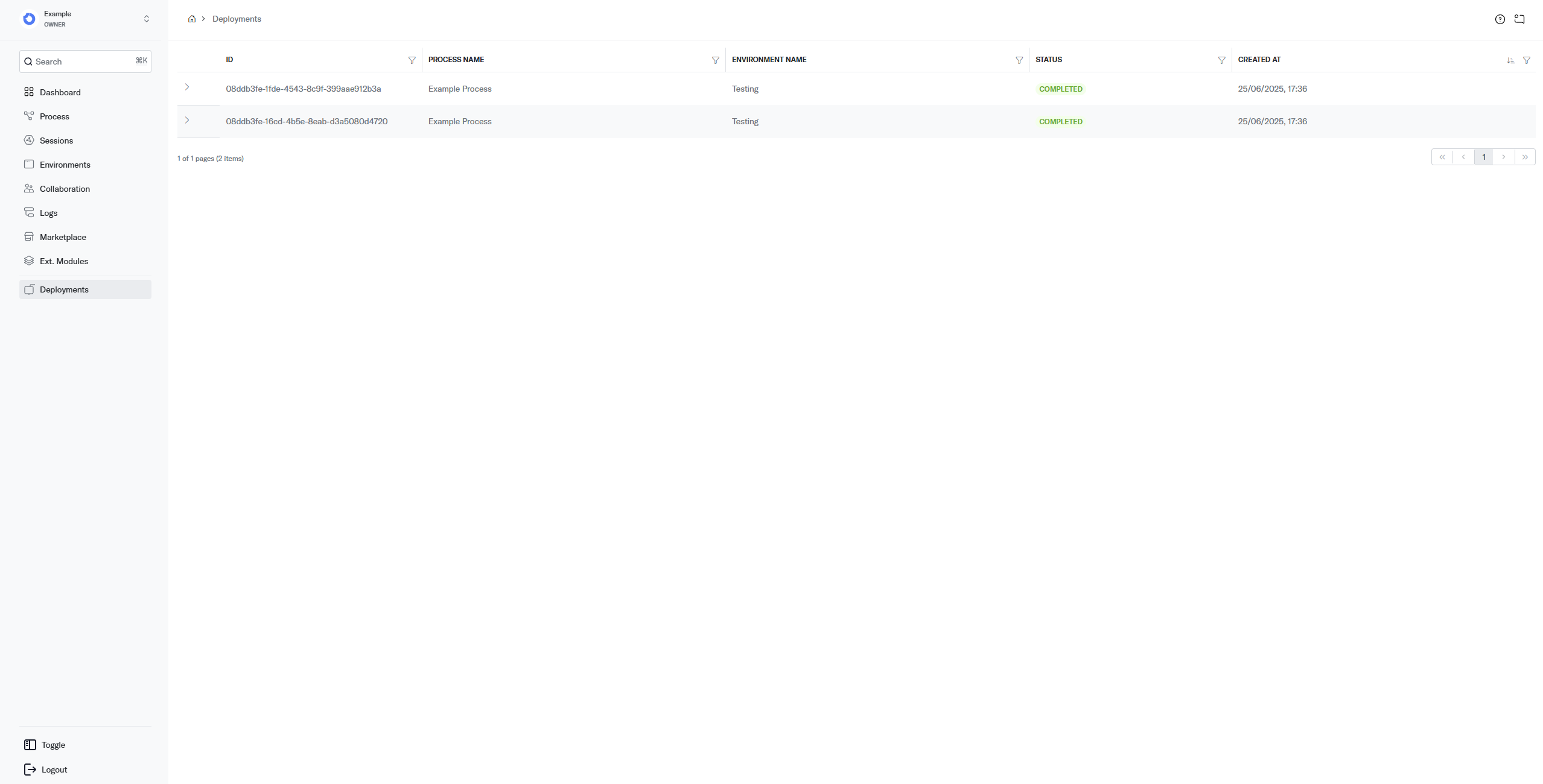
- Status whether the Deployment succeeded or failed.
- Environment the target Environment.
- Process the Process that was deployed.
- Created At when the Deployment was triggered.
Click the expand arrow on any row to view that Deployment's logs.
Chat
The Chat button in the editor toolbar opens a test chat panel on the right side. Use it to interact with the latest deployed version of your Process in real time. Sessions created from test chats appear on the Sessions page.
Best practices
- Save frequently each save creates a version you can roll back to if needed.
- Use descriptive summaries a clear summary helps collaborators understand what the Process does without opening the editor.
- Test before deploying to production use the Chat panel or a dedicated test Environment to verify behavior.
Related pages
- BPMN Editor learn how to use the visual editor.
- Environments configure the runtime settings for your Process.
- Sessions inspect execution data from your deployed workflows.