Collaboration
Invite team members to your Workspace and control what they can access with role-based permissions.
Collaboration lets you share your Workspace with other people by sending them an invitation with an assigned Role. Each Role determines the level of access the collaborator has to Processes, Environments, Sessions, and settings within the Workspace.
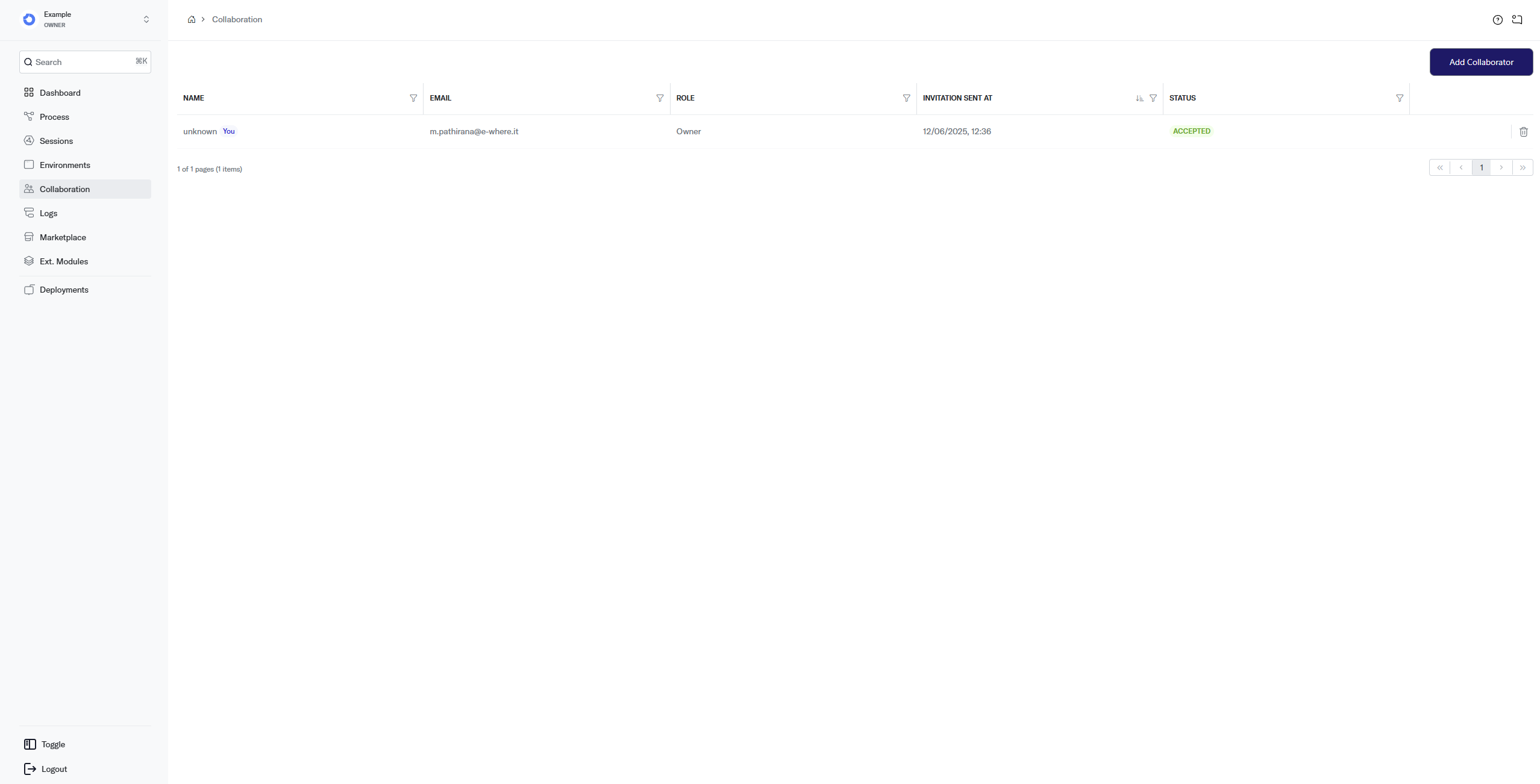
How it works
An Owner or Admin invites collaborators by email. Each invitation includes a Role that defines the collaborator's permissions. The invitee receives an email and has 7 days to accept before the invitation expires. Every invitation appears in the list with its current Status; once accepted, the collaborator can access the Workspace according to their Role.
Only collaborators who have accepted their invitation count toward your Service Plan's collaborator limit. A Pending invitation does not use a seat until it is accepted, and Revoked, Declined, or Expired entries never count.
Roles
Every collaborator has exactly one Role: Guest, Dev, Admin, or Owner. Roles are cumulative each Role can do everything the Roles to its left can do, plus more.
| Capability | Guest | Dev | Admin | Owner |
|---|---|---|---|---|
| View the Dashboard, Processes, Sessions, and Logs | Yes | Yes | Yes | Yes |
| Create and edit Processes, save versions, and deploy | — | Yes | Yes | Yes |
| Create and configure Environments | — | Yes | Yes | Yes |
| Delete Processes and Environments | — | — | Yes | Yes |
| Manage collaborators (invite, change Roles, revoke) | — | — | Yes | Yes |
| Manage billing, invoices, and the Service Plan | — | — | Yes | Yes |
| Delete the Workspace | — | — | Yes | Yes |
| Manage Owners and grant the Owner Role | — | — | — | Yes |
The User Role list also shows an Accountant Role. It is not connected to any of the permission tiers above a collaborator with the Accountant Role cannot view or manage anything in the Workspace so avoid assigning it.
Two rules protect the Workspace itself:
- An Admin can manage every collaborator except an Owner only an Owner can change or revoke another Owner, or assign the Owner Role to someone.
- A Workspace must always keep at least one Owner. The last Owner cannot be revoked or demoted assign the Owner Role to someone else first.
Fields
- Name the display name the collaborator chose during account creation.
- Email the email address associated with the collaborator's account.
- Role the Role assigned to the collaborator: Owner, Admin, Dev, Accountant, or Guest. See Roles for what each Role can do.
- Invitation Sent At date and time the invitation was sent or the role was assigned.
- Status the current state of the invitation: Accepted, Pending, Declined, Expired, or Revoked.
Actions
Invite a collaborator
- Navigate to Collaboration from the sidebar.
- Click Add Collaborator in the top-right corner.
- Enter one or more email addresses in the Invite team members field.
- Select a Role from the User Role dropdown it applies to every invitee in the list.
- Click Continue to send the invitations.
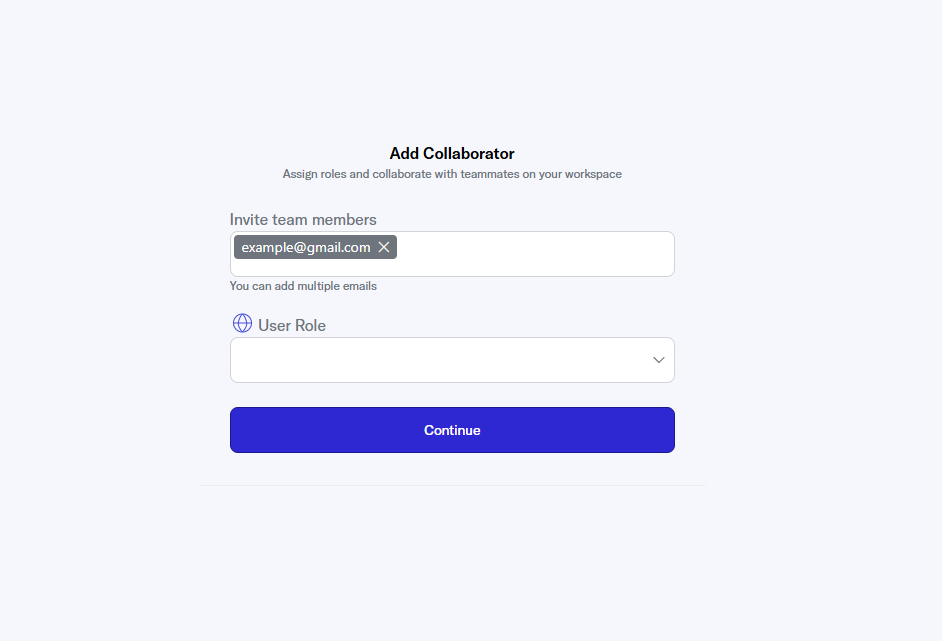
Each invitee receives an email with a personal invitation link that expires after 7 days. If the invitation expires, you can re-send it at any time.
The number of collaborators allowed depends on your Service Plan. See the Pricing page for details. Only Accepted collaborators use a seat pending invitations don't count until they are accepted.
Change a collaborator's Role
- Navigate to Collaboration from the sidebar.
- In the collaborator's row, click the Change role (pen) icon. It is available for collaborators whose Status is Accepted or Pending.
- Select the new Role from the User Role dropdown.
- Click Save.
The change takes effect immediately and does not re-send the invitation. Only an Owner can change another Owner's Role or assign the Owner Role. If you lower your own Role, you lose the corresponding access right away.
Revoke access
- Navigate to Collaboration from the sidebar.
- In the collaborator's row, click the Revoke access (trash) icon. For any entry that is not currently Accepted, the icon reads Remove invitation instead.
- Click Revoke (or Delete for an entry that is not Accepted) in the confirmation dialog.
What happens depends on the Status:
- An Accepted collaborator immediately loses access to the Workspace. Their entry stays in the list with Status Revoked as a record of past access, and their seat is freed right away.
- A Pending, Declined, Expired, or Revoked entry is removed from the list entirely, so you can invite the same email again later.
You can revoke your own access. If you do, you immediately lose access to the Workspace and cannot restore it yourself another Owner or Admin must re-invite you.
Re-send an invitation
- Navigate to Collaboration from the sidebar.
- In the collaborator's row, click the Resend invitation (refresh) icon. It is available when the Status is Pending, Revoked, Declined, or Expired.
- The collaborator receives a fresh invitation email, valid for another 7 days, and the entry returns to Pending.
Re-sending issues a new invitation link links from earlier invitation emails stop working. You cannot re-send an invitation to a collaborator who has already accepted.
Best practices
- Use the least-privilege Role assign the minimum Role needed for each collaborator to reduce the risk of accidental changes.
- Revoke access promptly when a team member no longer needs access, revoke their invitation or change their Role.
- Keep a second Owner assigning the Owner Role to a trusted teammate ensures the Workspace stays manageable if the original Owner is unavailable.
Related pages
- Environments collaborators with the right Role can configure Environments.
- Process collaborators can view or edit Processes depending on their Role.